

A Zoom interview AI assistant can help you rehearse answers before a call or suggest talking points during an interview where AI assistance is permitted. Choose by the task you need: Zoom's own meeting AI helps with meeting content and follow-up work; candidate-focused copilots aim to turn questions into answer guidance. For a live tool, test whether it receives the other person's voice through your actual Zoom and headphone setup.
Passing Zoom's microphone test does not establish that a separate assistant can hear incoming interview questions. That distinction is the first thing to check before paying for a session.
Disclosure and scope: SkillCopilotAI publishes this guide and sells an interview assistant. This is source-based guidance, prepared with AI assistance from the linked public pages checked on October 21, 2026. We did not run a live Zoom comparison, measure response times, or verify screen-sharing visibility for these products. The cover is an AI-generated illustration, not a product screenshot or test evidence. The rehearsal below is original fictional practice material, not a real employer question or a recorded test result.
Which kind of Zoom assistant do you need?
Start with what you want to produce. A meeting summary, a practice critique and an answer outline are different outputs.
| Your task | Useful tool category | What to verify |
|---|---|---|
| Recover a decision or recap what people discussed | Zoom's meeting AI | Whether the host and account settings make the feature available to you |
| Improve your own explanation before interview day | Mock practice or an AI chat used after your attempt | Whether feedback identifies missing reasoning and unsupported claims |
| Get answer cues during an explicitly AI-permitted round | Candidate-focused interview copilot | Incoming call audio, relevant context, usable cues and the employer's rules |
| Take notes or prepare hiring-team follow-ups as an interviewer | Interviewer or meeting workflow tool | Your organization's approved recording, data and hiring workflow |
The current Zoom AI product page presents ZoomMate, with meeting preparation, notes and post-meeting tasks. Some Zoom support documentation still uses AI Companion for meeting questions. Those questions use meeting speech-to-text content, and account, group and host controls affect access. Do not assume a feature on your own Zoom account will be available in an employer-hosted meeting.
That is also different from a candidate tool proposing how to explain an API design or a project from your resume. Neither category proves that its output is correct or that the interviewer permits its use.
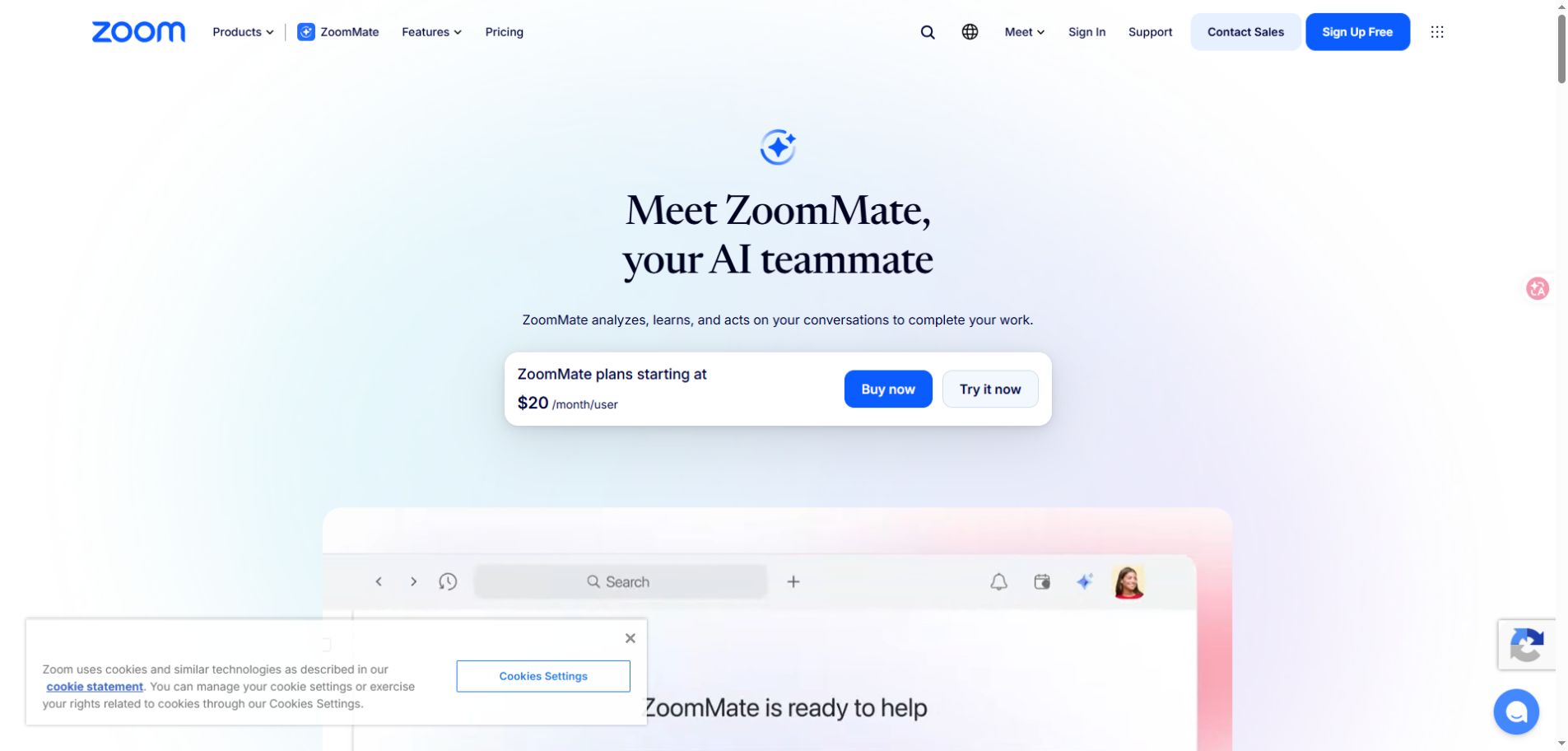
Zoom's public AI product page, captured October 21, 2026. This documents the page's current positioning; it is not a test of interview answers. The displayed offer is a dated page capture, not a current checkout quote.
Tool choices: compare the workflow before the claims
These are published capabilities, checked on October 21, rather than a performance ranking. The links go to the providers' own descriptions.
| Option | What its public page describes | Useful next check |
|---|---|---|
| Zoom's own AI | Meeting context, preparation, notes and follow-up work | Check the exact feature, plan and host controls; do not buy it assuming it is a candidate answer copilot |
| CoPilot Interview | A separate Windows/macOS app that captures call audio and drafts coding, design and behavioral guidance | Run the incoming-audio and follow-up checks below; its speed and private-window claims are not independently verified here |
| LockedIn AI | Interview answers, coding support, coaching and separate remote-assist functionality, with desktop, web and mobile entries | Confirm which client supports your intended input; a web or mobile entry alone does not establish desktop system-audio capture |
| SkillCopilotAI | Resume- and role-aware guidance for behavioral, technical and coding interviews, including Zoom workflows | Check the current desktop requirements and try the same fictional question and correction; this guide does not establish an accuracy or visibility advantage |
If you only need to practice, begin with a mock session and feedback. A live copilot adds an audio setup task that ordinary typed practice does not test. Our copilot versus mock interview guide explains that choice in more detail.
For payment, record the amount due now, billing period, included minutes or credits, expiry and renewal terms. A free download is not evidence that a full Zoom session is free. Check whether your audio rehearsal consumes the same allowance as live guidance. Use the provider's current checkout terms; this article does not reproduce prices that may change.
Before the call: establish what is allowed
Ask the recruiter or interviewer about the actual stage, including notes, transcription and generated answers. Permission to use an IDE assistant in a coding exercise does not automatically cover a behavioral interview.
You can ask:
“For this Zoom round, are personal notes, transcription or AI-generated suggestions allowed? If so, are there restrictions on the tools or the material I can send to them?”
If live suggestions are not allowed, use the assistant for rehearsal beforehand and close it for the interview. If the rules are unclear, clarify them before relying on it.
For practice context, write down your actual role, one project you can explain and the facts you are prepared to defend. Remove confidential customer information, internal code and personal details that the exercise does not need. Check the tool's current data handling before sending interview material. A desktop window alone does not establish that processing stays on your device.
Check the three audio paths separately
You need to establish three different things:
- Zoom sends your voice to the other participant.
- Zoom plays their voice through the output device you chose.
- The assistant receives the intended question, through its supported input method.
The first two are Zoom checks. The third belongs to the assistant. A transcript of your own voice proves neither that incoming Zoom audio is captured nor that a phone call reaches a desktop tool.
1. Test Zoom's speaker and microphone
In the Zoom desktop app, open Settings → Audio and test the selected speaker and microphone. Use the headphones and microphone you intend to use for the interview, rather than testing speakers and switching later. Zoom's official audio instructions explain the test tone, microphone playback and device selection. You can also use Zoom's test meeting.
This checks Zoom's devices. It is not a test of the assistant.
2. Test a remote question through your headphones
Arrange a private practice call with someone who agrees to the exercise. Launch the assistant using its own setup instructions, select its supported call-audio input and review any required permissions. Ask your partner to read a harmless fictional question while you listen through your headphones.
Inspect the transcript or captured question before judging the generated answer. Did the assistant receive the remote voice? Did it retain important words, numbers and the end of the question? Then ask a follow-up and check that it arrived too.
If the assistant only hears you, investigate its incoming-audio selection and permissions. Do not assume that a good microphone or louder speakers fixes that path. Speaking the question into your microphone can test a different input, but it does not reproduce incoming Zoom audio.
3. Repeat after changing the call setup
A Bluetooth switch, different output device, browser client or phone dial-in changes the setup you are evaluating. If you join audio on a phone while the assistant runs on a laptop, the laptop may not receive that audio. Either verify an explicitly supported phone workflow or test with computer audio.
For Mac-specific installation and permission checks, use the Mac assistant setup guide. Follow the selected product's current instructions rather than assuming every app uses identical controls.
A ten-minute rehearsal that reveals more than a demo
Use this original fictional exercise with a consenting practice partner. The schedule is a suggested rehearsal, not a measured product benchmark. Run it before a real interview, using no confidential material.
Give the assistant this context through its supported context field or prompt:
“Practice profile: I am a backend engineer. I built a retry queue for failed webhook deliveries. My responsibility was retry scheduling and monitoring; a teammate owned the database migration. I have no verified percentage improvement. Keep guidance to three short cues. Do not invent metrics or expand my ownership.”
Spend two minutes checking Zoom devices, then have your partner ask:
“Tell me about a reliability improvement you worked on. What was your contribution?”
A useful outline should keep the retry queue as the example, distinguish your contribution from the teammate's work and leave out invented percentages. It should give you cues you can explain, rather than require you to read an unfamiliar story.
Next, introduce a correction and a technical follow-up:
“Correction: I implemented the monitoring, but I only proposed the retry schedule. How would you prevent duplicate deliveries?”
Check whether the new guidance respects the reduced ownership. For the technical part, useful discussion points include an idempotency key, tracking processed events and deciding when to acknowledge success. Retries alone do not establish exactly-once delivery; the receiver's behavior and failure boundaries matter.
Finish by explaining your answer with the assistant closed. You should be able to describe the duplicate-processing risk and your actual contribution without relying on generated text.
| Check | What to record | Result |
|---|---|---|
| Incoming audio | Captured remote question, including important details | Verified / Failed / Unchecked |
| Context | Whether ownership stayed within the fictional profile | Verified / Failed / Unchecked |
| Correction | Whether “proposed” replaced the earlier scheduling claim | Verified / Failed / Unchecked |
| Technical follow-up | Whether you can explain the suggested duplicate-handling approach | Verified / Failed / Unchecked |
| Usability | Whether three cues helped you speak naturally | Verified / Failed / Unchecked |
Record the date, operating system, Zoom client, assistant client, audio device and actual output. A verified row describes that attempt only. Leave it unchecked when you have not run it; the table is not a reported result for any product.
If it fails, identify the symptom
| What happens | First thing to check | How to confirm the fix |
|---|---|---|
| Your partner cannot hear you | Zoom's selected microphone, mute state and microphone permission | They hear a short sentence clearly |
| You cannot hear your partner | Zoom's speaker selection and headphone connection | You hear their sentence through the intended device |
| Zoom works, but the assistant receives no remote question | The assistant's call-audio input and required permissions | Its captured text contains the partner's question |
| The assistant hears you but not the partner | Microphone input versus incoming call audio; phone versus computer audio | Repeat the remote-only question without reading it aloud yourself |
| The question is captured incorrectly | The captured text, selected language and audio clarity | Numbers, names and the complete question match the rehearsal |
| The question is right, but the answer invents achievements | Supplied context and unsupported assumptions | A repeat attempt preserves ownership and omits invented metrics |
| The answer is correct but difficult to use | Length and explanation level | You can explain the approach from short cues without reading a script |
Change one part of the setup at a time. Buying more credits or switching models does not establish that an audio-routing problem has been fixed.
Screen sharing: inspect what the recipient receives
Zoom supports sharing an entire desktop, selected applications and other content. Those choices expose different material. For an authorized practice session, select the surface you actually need and ask the other participant what they can see. Check notifications and any recording you are permitted to make as well.
Your own desktop view cannot prove what another participant receives. A vendor's private-window claim is also not a guarantee across operating systems, application versions, recording tools and capture methods. This guide has not tested those combinations. Screen visibility does not replace permission to use a tool.
For the SkillCopilotAI Mac Zoom desktop workflow, our Mac setup guide specifies Settings → Share Screen → Advanced → Screen capture mode → Advanced capture with window filtering before checking the shared view. Zoom's advanced screen-sharing documentation confirms that this option exists and describes how it handles Zoom's own windows. That documentation does not establish that a third-party assistant is excluded; verify the actual recipient view for your setup.
Where SkillCopilotAI fits
SkillCopilotAI is an option if you want desktop answer guidance tied to your resume and role, rather than only a meeting recap. Its current download page lists a universal Mac installer for macOS 14 or later, and Windows installers for 64-bit Windows 10/11. Those are published requirements, not an installation test performed for this article.
Try it with the fictional profile above before adding real interview material. Check incoming Zoom audio, the ownership correction and whether the cues help you explain your reasoning. If you need only feedback after speaking, a simpler rehearsal workflow may be enough. Compare current allowances on the pricing page before paying.
Can I use a Zoom interview AI assistant for free?
Some vendors offer free entry, but check whether that covers the client, input method and usable session time you need. A download, a typed demo and a full incoming-audio session can have different limits. Verify current allowances before scheduling a rehearsal.
About the author and research
The SkillCopilotAI Editorial Team handles article editing and website operations. This byline does not claim employment at Zoom, recruiting authority or a personal test of these products. The linked official pages were checked on October 21, 2026; product capabilities in the choice table are attributed provider descriptions. The rehearsal and troubleshooting sequence are guidance to apply, not observations from a completed live session. Report factual corrections through our contact page.
Choose your next step
Compare tools or explore guidance for a permitted practice conversation.