

To set up SkillCopilotAI on a Mac, check that you are running macOS 14 or later, install the Mac app, review its microphone and recording permissions, then test a partner's voice through your meeting app while wearing headphones. Hearing your own voice is only half the audio check.
Work through the checklist before the day of your interview. The steps below separate installation, permissions and incoming audio so that a failure tells you what to check next. Product-specific audio controls vary; use the instructions for the app you install.
Scope and disclosure: SkillCopilotAI publishes this guide and sells an interview copilot. We checked the linked public product pages and Apple documentation on October 20, 2026. Permission-dialog wording was also checked against contributor-supplied Mac images; the macOS and app versions were not provided. We have not run a comparative Mac audio, speed or screen-sharing test. The exercise below is original practice material, not a reported product result. Use live assistance only where it is permitted; otherwise use these checks for private practice.
1. Check what your Mac can run
“Works on Mac” can describe a desktop application, an iPad application available on supported Macs, a browser workflow or a companion device. Check what you are actually installing before comparing features.
| Product and official source | Published Mac requirement | What to check next |
|---|---|---|
| SkillCopilotAI | macOS 14 or later | Use the single Mac download; no chip-specific installer selection is needed |
| Final Round AI | macOS 14.4 or later | Confirm chip support before purchase; the homepage does not specify it |
| CoPilot Interview | macOS 12 or later on Intel and Apple Silicon | Follow its product-specific setup instructions and test incoming call audio |
| Interview AI Copilot: Whisper | The Mac compatibility section requires macOS 14 or later and an M1 chip or later | Check the intended Mac, iPhone or iPad workflow; the listing is marked Designed for iPad |
| AceRound | The homepage advertises macOS 13 or later | Confirm the current build's chip requirements; we did not verify them |
| ExtraBrain | macOS 14 or later on Intel and Apple Silicon | Its on-device model separately requires at least 16 GB of RAM; check the processing path you intend to use |
These are published requirements, checked on October 20, 2026, rather than results from installing every app. They do not establish answer quality or reliability.
For SkillCopilotAI, you only need to confirm macOS 14 or later before choosing the Mac download. Other products have their own requirements: for example, Whisper specifies M1 or later, and Final Round AI lists macOS 14.4 or later. Those conditions do not apply to SkillCopilotAI.
Check your macOS version
Open Apple menu → About This Mac and check the macOS version. If it is 14 or later, use SkillCopilotAI's Mac download. You do not need to choose between an Intel installer and an Apple Silicon installer.
Use the current download page rather than an installer linked in an old comparison article.
2. Download and open the application
What SkillCopilotAI does on Mac
SkillCopilotAI's AI interview assistant is described as a desktop copilot that listens to live questions, uses your resume and target-role context, and suggests an answer outline. Its coding interview workflow also supports screenshot-based prompts. The product describes a private overlay designed to stay outside supported screen-sharing captures; this guide does not independently verify every meeting app or capture method.
Two capabilities are particularly useful to check during your Mac rehearsal:
- Choose the model that answers your question. SkillCopilotAI offers interview answers from OpenAI, Google Gemini and Anthropic Claude models. The available selection is updated as support for new models is added. Check your plan's current model access on the pricing page, then choose a model for the session rather than assuming every plan includes the same selection.
- Capture the whole screen or a selected area. Screenshot input supports automatic answers, as well as manually submitting multiple screenshots together. That gives you a way to include a problem statement, constraints and examples when they do not fit into one capture. Check the captured content before submitting it manually.
These features describe the product workflow confirmed by SkillCopilotAI for this guide. They are not a measured comparison of model quality, speed or screenshot accuracy.
The checks below help you confirm those inputs on your own Mac. They do not require you to repeat a partner's question into your microphone or assume that microphone access also captures computer playback.
Install the current Mac build
SkillCopilotAI provides one Mac download for macOS 14 or later. Follow its published installation sequence:
- Select Download for macOS on the download page.
- Open the downloaded installer and move SkillCopilotAI into Applications.
- Open the copy in Applications before proceeding with permissions and the practice call.
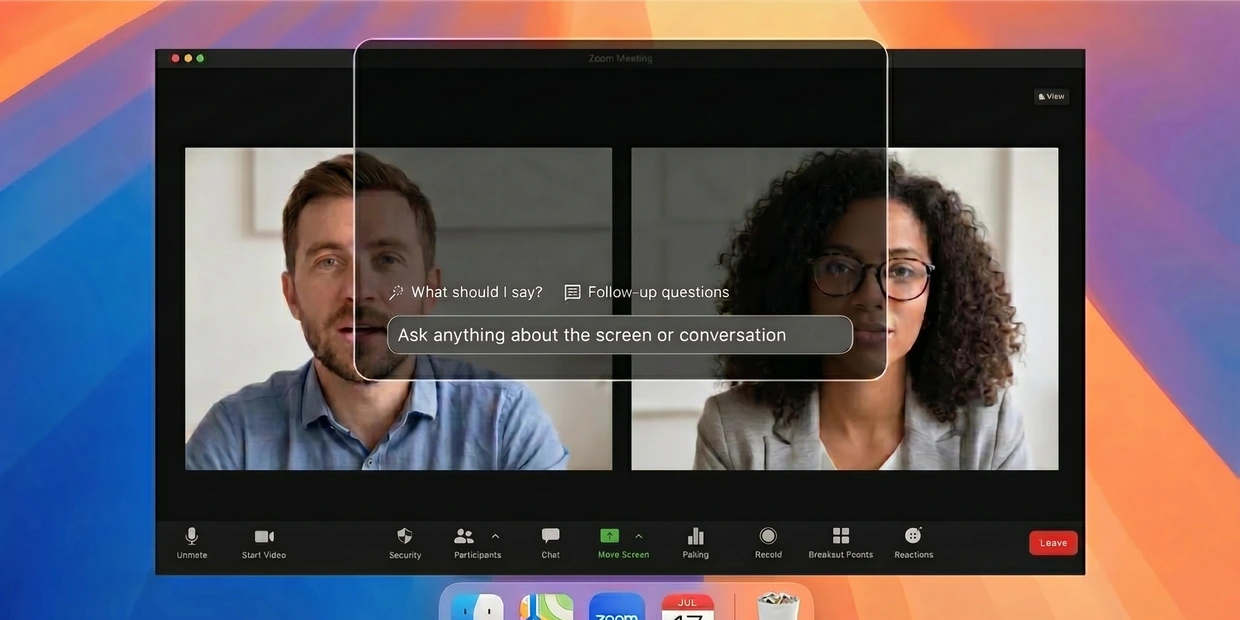
Other providers may distribute a ZIP instead of a disk image. Follow that provider's instructions rather than assuming every Mac download installs the same way. This article's cover is existing SkillCopilotAI product material, not a photograph of this installation checklist being tested.
If macOS blocks an application, first confirm its source and read the warning. Follow Apple's guidance for safely opening apps. An unidentified-developer warning and an alert that an app will damage your computer require different decisions. Do not disable system protections just to finish an interview setup.
3. Review microphone and recording permissions
Recognize SCAI in the permission prompts
SkillCopilotAI appears as SCAI in the permission prompts reviewed for this guide. The system-audio dialog identifies it as “SCAI by SkillCopilot AI.” Look for that name when reviewing the application's permissions.
If the Screen Recording dialog says SCAI would like to record the computer's screen and audio, click Open System Settings to review and grant the requested access under Privacy & Security. That button opens settings; clicking it alone does not complete the permission change.
If SCAI asks for access to record your system audio, click Allow to grant it for the intended workflow. The visible explanation says this access is needed for transcription and AI responses.
Dialog wording and the sequence of prompts may differ by macOS or app version.
Check the permissions for the input you need
Open System Settings → Privacy & Security. Review Microphone for your chosen application. If you need capture of computer playback or screenshots, also review Screen & System Audio Recording and the app's own instructions. On some macOS versions the label is Screen Recording. Grant access for the features you intend to use, then follow any relaunch prompt.
Your microphone captures your voice and sounds around it. The other person's voice may arrive through your Mac's playback stream and go directly into headphones. Giving an assistant microphone access does not, by itself, show that it receives that playback stream.
If an assistant responds to you speaking but misses your practice partner while you wear your intended headset, investigate the incoming audio path before judging its answers.
| Input you need | Where to look | What confirms it works |
|---|---|---|
| Your spoken answer | System Settings → Privacy & Security → Microphone, plus the app's selected input | Your spoken practice sentence reaches the assistant |
| The other speaker's question | The assistant's documented system or meeting audio setup, relevant macOS permission, and meeting output selection | A partner's complete question reaches it while you wear headphones |
| A screenshot or visible problem | The app's capture settings and relevant screen-recording permission | The intended practice problem, including its constraints, is captured |
Apple's microphone guide explains how to review microphone access. Its separate screen and system audio recording guide explains the recording controls under Privacy & Security. Current controls can allow screen and audio recording or audio alone. Labels and available controls depend on the system version.
Follow the chosen app's instructions for the feature you need. If it asks you to relaunch after a permission change, do that before retesting. Keep the meeting app, headset and selected devices consistent during the check so that you can identify what changed.
4. Check audio through Zoom, Teams or Meet
Set Zoom's screen capture mode on Mac
If you use the Zoom desktop app on Mac with SkillCopilotAI and need to share your screen, complete this additional setup before the interview:
- Open Zoom → Settings → Share Screen → Advanced.
- Under Screen capture mode, select Advanced capture with window filtering.
- Start a private practice screen share and check the view received by the other participant.
This is a Zoom screen-sharing setting, separate from macOS recording permissions and your audio input. Zoom's advanced screen-sharing documentation lists this capture mode; its Chinese documentation calls it 过滤窗口的高级截屏. Labels may vary by Zoom version. This step reflects SkillCopilotAI's Mac Zoom setup guidance provided for this article, not a new end-to-end test or a guarantee about every recording method.
Check the meeting's audio devices
Connect your headphones before starting the assistant's session. In your meeting app's audio settings, confirm both the microphone and the speaker/output device. Then use the assistant's documented input setup for that meeting workflow. The permission switch alone does not establish that the app has selected the intended stream.
| Call setup | What to check |
|---|---|
| Zoom or Teams desktop app | Verify devices inside the meeting client, then test a partner's question in the assistant |
| Google Meet in a browser | Verify the browser's microphone access and Meet's selected devices; separately test how the assistant receives the call |
| Headphones, including Bluetooth | Confirm that the assistant receives the other speaker while the sound stays in your headphones |
| Speakers | Check whether the partner's voice also leaks into your microphone or produces duplicate words |
Do not treat switching to speakers as proof that system audio works: the microphone may simply be hearing sound in the room. If connecting a dock or changing headphones interrupts capture, repeat the check with the final device selection.
5. Rehearse with a partner before the interview
Use a private practice call with a partner on another device. Join through the meeting application you intend to use, and connect your usual headphones. A typed question tests answer generation; it does not test audio capture.
Ask your partner to read this original practice prompt while you remain silent:
Describe how you would investigate a slow application. Start with a web application—actually, make that a Mac desktop application. What would you check first?
Check whether the assistant receives both the question and its correction. The useful output should address a Mac desktop application rather than continue with the abandoned web-app scenario. This exercise checks a changed constraint; it is not a benchmark or a real employer question.
- Test your voice separately. Say a sentence and check that it arrives.
- Test the partner's voice with headphones on. Have them read the prompt without repeating it yourself. Inspect the transcript if one is available.
- Check the correction. Look for the switch from web to Mac desktop in the received question and suggested response.
- Test your actual task. If you need screenshot input, capture an ordinary practice problem and confirm that its text and constraints reach the app.
- Save the working setup. Note macOS and app versions, meeting software, input/output devices, and any permission or relaunch needed. Repeat after changing a headset or dock.
A solo mock interview can warm you up, but it cannot establish that incoming meeting audio works. If the transcript is incomplete, investigate capture before evaluating the answer. If no transcript is exposed, record that limit. For resume accuracy and a fuller buying comparison, use the existing copilot evaluation pack and checklist.
For SkillCopilotAI, also rehearse the screenshot workflow you intend to use: full-screen capture or a selected area, automatic answering or manual submission. If the prompt spans multiple images, manually submit the screenshots together and check whether the answer respects the constraints across them. To compare available models, use the same fictional question and context with your chosen OpenAI, Gemini or Claude options; do not judge the providers from different inputs or a single response.
Troubleshoot common Mac setup problems
Use the symptom to choose the next check. The possibilities below are diagnostic starting points, not a claim that one cause explains every failure.
| Symptom | Next check | Retest |
|---|---|---|
| Your voice arrives, but the partner's question does not | Review the assistant's incoming-audio setup, recording permission and meeting output device | Have the partner repeat one sentence while you remain silent |
| Neither voice reaches the assistant | Check that the session is active and review its input selection and permissions | Test your voice and the partner's voice separately |
| Audio stops after connecting headphones or a dock | Compare the selected devices with the previously working setup | Repeat the same question after restoring the intended devices |
| A screenshot is blank or contains the wrong window | Review screen access and the app's selected capture target | Capture an ordinary practice document and inspect the actual input |
| The full question arrives but suggestions are slow | Check connection stability, app status and whether the delay repeats | Record several attempts using the same timing definition |
| Answers add achievements you never supplied | Check the active background and session context | Use the linked evaluation pack to check unsupported personal claims |
Change one setting, repeat the same input, and keep the outcome. Changing the headset, network and session together might restore service, but it will not tell you which change helped.
Before the day: check allowance, privacy and your saved setup
SkillCopilotAI's pricing page advertises a limited 30-minute trial. Download the application, then sign in from the app to authorize it. Check the current included features and allowance before starting the rehearsal; do not assume each mode gives you a separate additional 30 minutes.
Free installation, free preparation and free live assistance are different offers. Final Round AI's current homepage distinguishes free preparation from live CoPilot sessions that require Pro. Whisper's App Store listing shows a free download with in-app purchases. Neither label alone promises a complete free live interview.
Before paying, check the allowance for your intended mode, any per-session limit, expiration, renewal and total payment. A short free allowance may be enough for an audio check without covering your planned rehearsal. Use the provider's current plan and checkout terms for the decision.
Also read what happens to audio, screenshots, resumes and transcripts. A desktop interface does not establish that processing stays on your Mac. For SkillCopilotAI, review the privacy policy before adding personal materials. Start with fictional context while checking the workflow.
Questions Mac users still need to resolve
Is WiseWhisper available on Mac?
WiseWhisper's current homepage links a Get for Windows download and a separate web-app entry. We did not find an explicit macOS desktop requirement on that page, so we cannot confirm a native Mac build or Mac audio-capture support from it. Ask the provider which Mac workflow it supports before paying.
WiseWhisper is a different product from Interview AI Copilot: Whisper, the App Store app in the table above. The latter's Mac compatibility field specifies macOS 14 or later and M1 or later; that requirement does not establish WiseWhisper's compatibility.
Do I need a different SkillCopilotAI download for my Mac's chip?
No. Use the same Mac download and confirm that your Mac runs macOS 14 or later. There is no separate Intel or Apple Silicon installer to select for SkillCopilotAI.
Does a mock interview prove the assistant works with Zoom or Teams?
No. It may only establish that the assistant receives your microphone. Test a partner's question through the intended meeting app while wearing your usual headphones. Our copilot versus mock interview guide explains the different tasks.
For a Zoom-specific rehearsal, use the Zoom interview assistant audio checks and troubleshooting guide, including its fictional question and ownership-correction exercise.
Will an assistant's window appear in a screen share?
That depends on the application, macOS version, meeting software and capture method. This guide has not tested their combinations and does not promise that any product is undetectable. In an authorized practice session, inspect the recipient's actual shared view and any recording you are permitted to make; your own desktop view cannot establish what another participant receives.
Do I need a newer Mac for faster answers?
Do not buy hardware based on a generic Apple Silicon speed claim. First meet the app's published requirements, then identify whether the delay occurs in input capture, transcription or answer generation. This guide contains no hardware benchmark or measured latency comparison.
Choose your next step
Compare tools or explore guidance for a permitted practice conversation.